

DIMEAR — SUPPORT CENTER
HERO SECTION
Eyebrow: We're Here for You
Headline: How Can We Help?
Subheadline: Search our help center, browse by topic, or reach a real person on our US-based support team — usually within one business day.
Search Bar Placeholder: Search for answers... (e.g. "how to pair Bluetooth," "return policy," "battery life")
Quick Links Below Search: → Track My Order → Start a Return → Warranty Claim → Contact Support
CONTACT OPTIONS STRIP
Headline: Prefer to talk to someone?
Option 1 — Live Chat Icon: Chat bubble Label: Live Chat Hours: Mon – Fri, 9 AM – 6 PM EST Description: The fastest way to get help. Connect with a real support specialist in under 2 minutes. CTA: Start Chat →
Option 2 — Email Icon: Envelope Label: Email Us Address: support@dimear.com Description: Send us a message anytime. We respond within one business day, usually much sooner. CTA: Send Email →
Option 3 — Phone Icon: Phone Label: Call Us Number: 1-800-DIMEAR-1 Hours: Mon – Fri, 9 AM – 5 PM EST Description: Prefer a conversation? Our team is ready to walk you through anything, step by step. CTA: View Number →
Option 4 — Setup Call Icon: Calendar Label: Book a Setup Call Description: New to Dimear? Schedule a free 15-minute call with a specialist who will walk you through pairing, app setup, and first-fit adjustment. CTA: Book a Time →
SUPPORT TOPICS — BROWSE BY CATEGORY
Section Headline: Browse by Topic
📦 ORDERS & SHIPPING
Getting Started — What to Expect After You Order
Once your order is placed, you will receive a confirmation email within minutes. Your device ships the same business day if ordered before 2 PM EST, or the next business day for later orders. Standard free shipping arrives in 5–7 business days. Expedited 2-day shipping is available at checkout.
How do I track my order? A tracking link is included in your shipping confirmation email (sent when your order leaves our warehouse). You can also track your order anytime at dimear.com/track-order using your order number and the email address used at checkout.
If you have not received a shipping confirmation email within 2 business days of placing your order, check your spam folder first, then contact us at support@dimear.com with your order number.
My order shows delivered but I haven't received it. What do I do? First, check around your front door, mailbox, side entrance, and with neighbors or building management — carriers sometimes leave packages in unexpected locations. If the package is genuinely missing:
- Wait 24 hours — "delivered" scans occasionally precede physical arrival.
- Contact your local USPS, UPS, or FedEx with the tracking number to file a missing package report.
- If unresolved after 48 hours, email us at support@dimear.com. We will investigate and, if confirmed lost, send a replacement at no cost to you.
Can I change or cancel my order after placing it? We process orders quickly, so changes must be requested within 2 hours of purchase. Email support@dimear.com immediately with your order number and the change you need. If your order has already shipped, we cannot modify it — but you can use our free return process once it arrives.
Do you ship to Alaska, Hawaii, or Puerto Rico? Yes. Alaska and Hawaii ship at standard free shipping rates with a delivery window of 7–10 business days. Puerto Rico and select US territories are also supported — contact us before ordering to confirm your specific address.
Do you ship internationally? Currently, Dimear ships within the United States only. International shipping to Canada and the UK is in development. Sign up at dimear.com/notify to be alerted when international shipping launches.
🔁 RETURNS & REFUNDS
Our 45-Day Free Trial — How It Works
Every Dimear purchase includes a 30-day risk-free trial from the date your device is delivered. If Dimear is not right for you for any reason — comfort, fit, amplification level, or simply personal preference — you can return it within 30 days for a full refund.
- No restocking fee
- No explanation required
- Free return shipping label provided by Dimear
- Refund processed within 5–7 business days of receiving your return
How do I start a return?
- Email support@dimear.com with your order number and the subject line "Return Request."
- Our team will reply within one business day with a prepaid return shipping label.
- Pack your Dimear device and all included accessories in the original box if available. (If you no longer have the original packaging, any sturdy box will work — just let us know.)
- Drop off the package at any UPS location using the label provided.
- Your refund will be issued to your original payment method within 5–7 business days of us receiving the return.
Do I need to return everything in the box? We ask that you return the device, charging cable, and carrying case. Failure to include these items may result in a partial deduction from your refund. The quick-start guide and adapter are not required.
I paid with HSA/FSA. How does my refund work? Refunds for HSA/FSA purchases are returned to the same HSA/FSA card used at checkout. Depending on your HSA/FSA administrator, this may take 5–10 business days to appear in your account. If you have questions about how this affects your account balance, contact your HSA/FSA plan administrator directly.
I paid with Afterpay. How does my refund work? Once we process your return, we notify Afterpay directly. Afterpay will cancel any remaining installments and refund payments already made to your original payment method. This typically takes 3–10 business days. Contact Afterpay support if you have questions about the timing.
What if I received a damaged or defective device? If your device arrived damaged or is not functioning correctly on arrival, please do not start a standard return. Email us at support@dimear.com with:
- Your order number
- A brief description of the issue
- One or two photos if applicable
We will send a replacement immediately — no need to return the damaged unit in most cases.
🛡️ WARRANTY
Dimear 2-Year Warranty — What's Covered
All Dimear devices come with a 2-year limited warranty from the date of purchase, covering:
✓ Transducer failure or degraded output ✓ Charging port or cable defects ✓ Bluetooth connectivity failures ✓ Frame cracks or integrity failures under normal use ✓ Any electronic component malfunction under normal use conditions
What is not covered: ✗ Physical damage from drops, impacts, or crushing ✗ Water damage beyond the device's IP rating (e.g., submerging a Pro S, which is IP55-rated) ✗ Damage from unauthorized repairs or modifications ✗ Normal wear and tear on cushions, coatings, or cosmetic surfaces ✗ Loss or theft
How do I submit a warranty claim?
- Email support@dimear.com with subject line "Warranty Claim."
- Include your order number, purchase date, and a description of the issue.
- Our team will assess your claim within 2 business days and either guide you through a remote troubleshooting step or approve a warranty replacement.
- Approved warranty replacements ship within 3–5 business days at no cost to you.
My device is out of warranty. Can you still help? Yes. We offer out-of-warranty repair and replacement at reduced cost. Contact support for current pricing. In many cases, the repair cost is significantly lower than purchasing a new device.
⚙️ SETUP & GETTING STARTED
What's in the box?
Every Dimear Pro S and Pro Max includes:
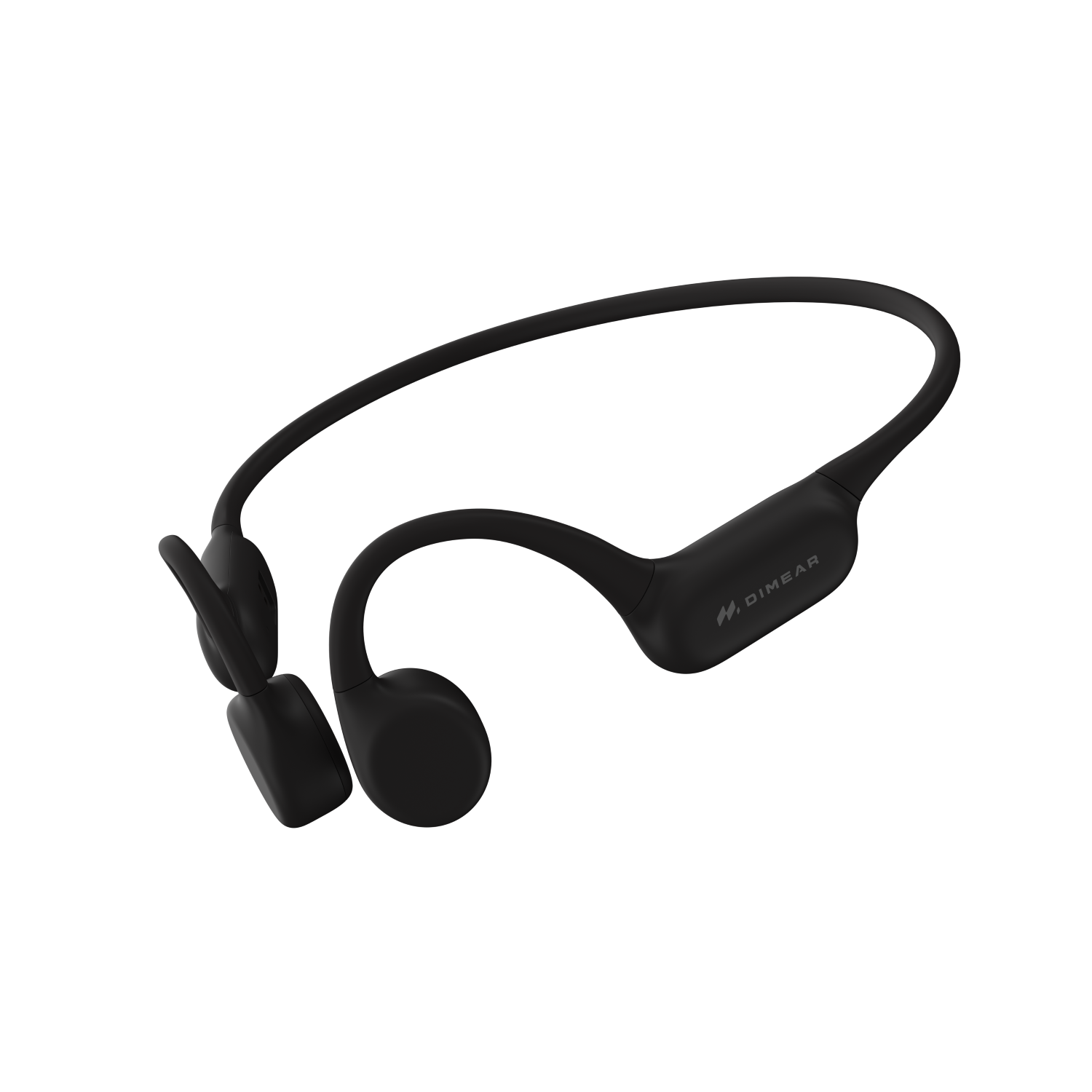
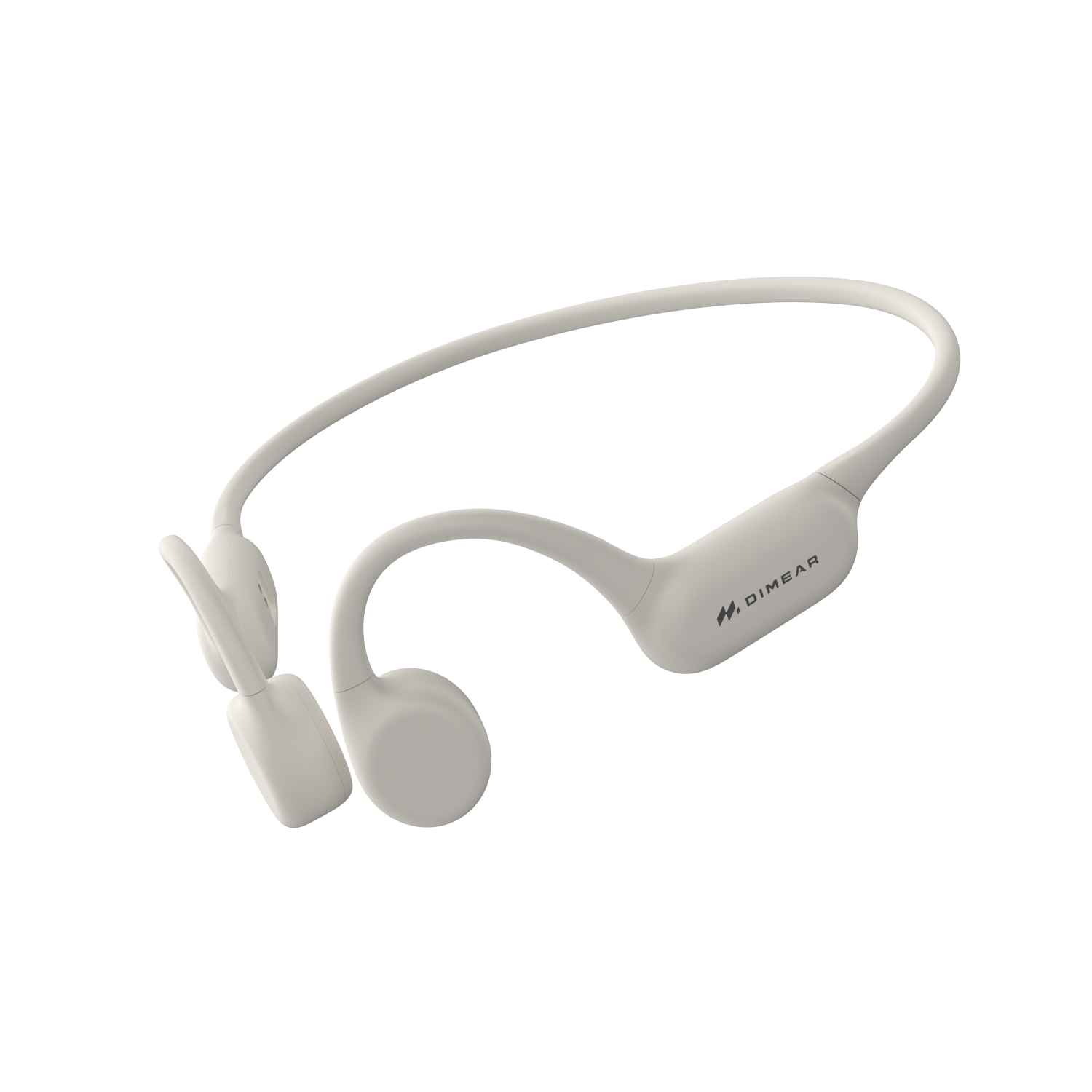
- Dimear hearing device
- Magnetic charging cable
- Premium carrying case
- Quick-start guide
- US power adapter
How do I charge my Dimear for the first time? Connect the magnetic charging cable to any USB-A power source (the included adapter, a laptop USB port, or a standard wall adapter). Align the magnetic connector with the charging port on the back of the right transducer — it will click into place. A blue indicator light means charging is in progress. The light turns white when fully charged. First charge takes approximately 1.5–2 hours.
Charge your Dimear before first use, even if it appears to have battery life — devices may lose charge during shipping and storage.
How do I turn Dimear on and off? Press and hold the power button (located on the right transducer housing) for 2 seconds. A voice prompt will say "Dimear — Power On" and announce the current battery level. To power off, press and hold for 3 seconds until you hear "Power Off."
How do I download the Dimear app? Search "Dimear" in the Apple App Store or Google Play Store. Download is free. Create an account using your email address and order number to access your full device profile and hearing assessment.
How do I pair Dimear to my iPhone?
- Turn on Dimear (it will enter pairing mode automatically on first use, indicated by an alternating blue/red light).
- On your iPhone, go to Settings → Bluetooth and ensure Bluetooth is turned on.
- Under "Other Devices," tap "Dimear Pro S" (or Pro Max) when it appears.
- You will hear "Connected" in both ears. Setup is complete.
For future connections, Dimear will reconnect to your iPhone automatically when powered on.
How do I pair Dimear to an Android phone?
- Turn on Dimear.
- On your Android phone, open Settings → Connected Devices → Pair New Device.
- Select "Dimear Pro S" or "Dimear Pro Max" from the list.
- Tap "Pair" on any confirmation prompt.
- You will hear "Connected" in both ears.
How do I pair Dimear to my TV? Most smart TVs (Samsung, LG, Sony, Vizio) support Bluetooth audio output directly:
- On your TV, go to Settings → Sound → Sound Output → Bluetooth Speaker List.
- Power on Dimear and wait for it to appear in the list.
- Select it to connect.
If your TV does not have built-in Bluetooth, you can connect Dimear via your phone using a Bluetooth transmitter or TV streaming app. Contact support for specific setup guidance for your TV model.
I'm having trouble connecting. What should I try first?
- Toggle Bluetooth off and back on on your phone.
- Turn Dimear off and on again.
- On your phone, "forget" the Dimear device in Bluetooth settings and re-pair from scratch.
- Ensure no other devices nearby are already connected to Dimear (it connects to one device at a time).
- If none of the above work, perform a factory reset (see below) and re-pair.
How do I reset Dimear to factory settings? Press and hold the power button and volume-up button simultaneously for 8 seconds. You will hear "Reset Complete." The device will power off automatically. Power it back on and re-pair with your phone as a new device.
🔊 USING YOUR DIMEAR
How do I adjust the volume? Use the volume buttons on the right transducer housing: the upper button increases volume, the lower button decreases it. Each press changes volume by one step. You can also adjust volume within the Dimear app for finer control.
How do I switch between listening modes? Triple-press the power button to cycle through listening modes: Conversation → TV → Outdoor → Phone. The current mode is announced via voice prompt. You can also switch modes in the Dimear app.
How do I take or end a phone call? When a call comes in, a single press of the power button answers it. Press once again to end the call. Dimear's microphone automatically activates during calls, so your phone can stay in your pocket.
Can I use only one ear? Dimear is designed as a binaural (both ears) device for optimal speech understanding. However, the device will still function if only one transducer is in contact — the other side will remain active but at reduced effectiveness. For users with significant asymmetric hearing loss, contact our support team for advice on configuration.
The sound feels too loud / not loud enough. How do I adjust? Open the Dimear app and navigate to the Equalizer section. You can independently adjust the overall gain, treble, and midrange for each ear. If the default amplification level is too strong on first use, we recommend starting at 60–70% and increasing gradually over the first few days as you adjust. Most new users find their preferred setting within the first week.
I can feel vibration but the sound isn't clear. What's wrong? This is almost always a fit issue. The transducer pads must be in firm, flat contact with your cheekbones to conduct sound effectively. Try:
- Adjusting the frame so the pads sit slightly closer to your ears (on the cheekbone, not the temple).
- Pressing gently on the pads to confirm you feel a clear improvement in sound quality when contact is firmer.
- If you wear glasses, try removing them temporarily to test whether the frame is being displaced.
If fit adjustments don't resolve the issue, contact us — our team can walk you through positioning on a video call.
My Dimear is producing a buzzing or crackling sound. What should I do?
- Check that the charging port and magnetic contacts are clean and dry.
- Ensure volume is not set above 80% — very high volumes can cause transducer distortion on some audio sources.
- Test with a different audio source (different phone, different content) to rule out the source file.
- If buzzing persists across audio sources and volume levels, contact support. This may indicate a hardware issue covered under warranty.
Can two people share one Dimear device? Dimear is a personal hearing device calibrated to an individual's hearing profile in the app. Sharing is not recommended for optimal hearing benefit, though the device will function for any wearer at the default settings. Each user would need to set up their own profile in the Dimear app.
🔋 BATTERY & CHARGING
How long does the battery last? The Pro S provides up to 8 hours of continuous use. The Pro Max provides up to 12 hours. Battery performance may vary slightly depending on volume level, Bluetooth streaming activity, and ambient temperature.
My battery is draining faster than expected. What should I check?
- High volume levels significantly increase power consumption. Try reducing volume by 20–30% and see if battery life improves.
- Continuous Bluetooth streaming drains battery faster than ambient amplification alone.
- Cold temperatures reduce lithium battery efficiency — if you use Dimear outdoors in winter, expect moderately reduced battery life.
- If battery life has dropped significantly compared to when the device was new, contact support. Batteries do degrade over time, and out-of-warranty battery replacement is available.
Can I use Dimear while it's charging? No. The magnetic charging port is on the transducer housing in a position that makes simultaneous use impractical. We recommend charging overnight or during a 1.5-hour rest period during the day.
The charging light isn't turning on. What should I try?
- Reseat the magnetic connector — ensure it is properly aligned and clicked into place.
- Try a different USB power source or cable.
- Clean the magnetic contacts on both the cable and device with a dry cloth — oils and debris can interrupt the connection.
- If the device still won't charge after trying the above, contact support. This is typically covered under warranty.
📱 APP TROUBLESHOOTING
The app won't connect to my device. What should I do?
- Ensure Dimear is powered on and within 3 feet of your phone.
- Confirm Bluetooth is enabled on your phone.
- Force close the Dimear app and reopen it.
- In your phone's Bluetooth settings, "forget" the Dimear device, then re-pair and reopen the app.
- Uninstall and reinstall the Dimear app.
- If problems persist, contact support with your phone model and OS version.
My hearing assessment results don't seem right. The in-app hearing assessment is designed to be taken in a quiet environment with no background noise. Results may be inaccurate if taken in a noisy room, with the volume set incorrectly, or if you are not fully focused during the test. We recommend:
- Finding a quiet room
- Sitting still and listening carefully for the tones
- Retaking the assessment 2–3 times and averaging the results
The app assessment is a screening tool, not a clinical audiogram. For a precise hearing profile, we recommend an audiologist evaluation, which many insurance plans cover annually.
How do I update my Dimear firmware? The app will notify you when a firmware update is available. Navigate to Device Settings → Firmware Update in the app and follow the prompts. Ensure Dimear is charged above 50% before updating. Do not power off Dimear during the update process (approximately 3–5 minutes).
♿ ACCESSIBILITY & SPECIAL CIRCUMSTANCES
I have dexterity limitations. Is Dimear easy to put on and take off? Dimear's wrap-around design is generally easier to put on than behind-the-ear or in-ear hearing aids — there are no small components to insert or manipulate. The frame flexes open and rests on the head without precise positioning. Most users find they can put it on and take it off with one hand after a few days of practice.
If you have specific dexterity challenges and would like to speak with a support specialist about fit strategies, book a free setup call — we are happy to help.
Can Dimear be used with cochlear implant users? Dimear is not designed for cochlear implant users and should not be used as a substitute for cochlear implant processors. If you have questions about Dimear for a household member who uses a cochlear implant, consult their audiologist.
Is Dimear suitable for children? Dimear devices are designed and sized for adult users. We do not recommend Dimear for children under 18 without prior audiologist guidance. The device frame may not achieve proper contact on smaller heads, reducing effectiveness.
Do you offer large-print or audio instructions? Yes. Large-print quick-start guides are available upon request at no additional cost. Audio versions of all instructions and support documentation are available at dimear.com/accessibility. Contact support if you need any materials in an alternative format.
RESOURCES SECTION
Headline: Helpful Resources
Quick-Start Video Guide A 6-minute walkthrough covering unboxing, first charge, Bluetooth pairing, and app setup. Suitable for first-time technology users. → Watch on YouTube | Download PDF Guide
Dimear App User Manual Complete guide to every feature in the Dimear app: hearing assessment, equalizer, environment presets, firmware updates, and account management. → Download PDF
Audiogram Explainer Have a hearing test result but not sure what it means? Our plain-language guide explains audiogram terms, degree classifications, and how your results relate to Dimear's amplification range. → Read the Guide
HSA / FSA Payment Guide Step-by-step instructions for using your Health Savings Account or Flexible Spending Account to purchase Dimear — including what documentation you may need and how to submit reimbursement claims. → Read the Guide
Hearing Loss Association of America (HLAA) An independent national nonprofit supporting Americans with hearing loss. Excellent resource for peer support, advocacy, and local chapter events. → Visit hearingloss.org
CONTACT SECTION — BOTTOM OF PAGE
Headline: Still need help?
Body: Our US-based support team is staffed by real people who know the Dimear product inside and out — not scripts, not bots. If you have a question we have not answered here, we want to hear it.
Email support@dimear.com Response within 1 business day (usually same day)
Phone 1-800-DIMEAR-1 Mon – Fri, 9 AM – 5 PM EST
Live Chat Available on all pages at dimear.com Mon – Fri, 9 AM – 6 PM EST
Free Setup Call 15 minutes, one-on-one, with a Dimear specialist → Book at dimear.com/setup-call
Footer note: We are committed to making Dimear work for you. If 30 days in you are not hearing better, we will make it right — with a full refund, a replacement, or whatever it takes. That is our promise.
Dimear — Hear Better, Live Better.


